



What are one-click apps?
Hostpoint offers a range of “one-click apps”. These programs can be installed quickly, with just a few clicks on your own web hosting account or Managed Flex Server.
These apps can be used to create and manage different types of websites. These applications are examples of content management systems (CMS).
What apps does Hostpoint offer?
Hostpoint offers the following one-click apps:
| Name | Description |
|---|---|
| WordPress | The world’s most widely used CMS for creating websites, blogs and online stores. Thousands of themes and plugins are available. |
| WordPress with AI website assistant | A version of WordPress that includes an AI assistant in addition to the standard features. Available with Smart web hosting and higher. |
| Joomla! | Flexible CMS for corporate websites, portals and community projects. |
| TYPO3 | Enterprise CMS for complex, multilingual websites. Often used in the corporate, government and educational sectors. |
| Drupal | Flexible CMS for demanding web projects. It features extensive customization options, strong security, and a host of developer features. |
| MediaWiki | Software that is used for Wikipedia and many other websites. Ideal for knowledge bases and internal documentation. |
| phpBB | Software for creating community and discussion platforms. |
All these applications are open source (meaning that the code is public), free of charge, and extendable with various plugins and themes.
How do I install a one-click app?
This is how you install a one-click app on your web hosting account or Managed Flex Server:
Info:Note: the installation process is not exactly the same for every one-click app. Some steps may be skippable; you may sometimes need to provide additional information.
- Log in to the Hostpoint Control Panel with your Hostpoint ID.
- Open your web hosting account or Managed Flex Server.
- In the menu, go to “Websites” > “One-click apps”.
→ You will see a list of available applications. - Click on “Install” next to the app you want.
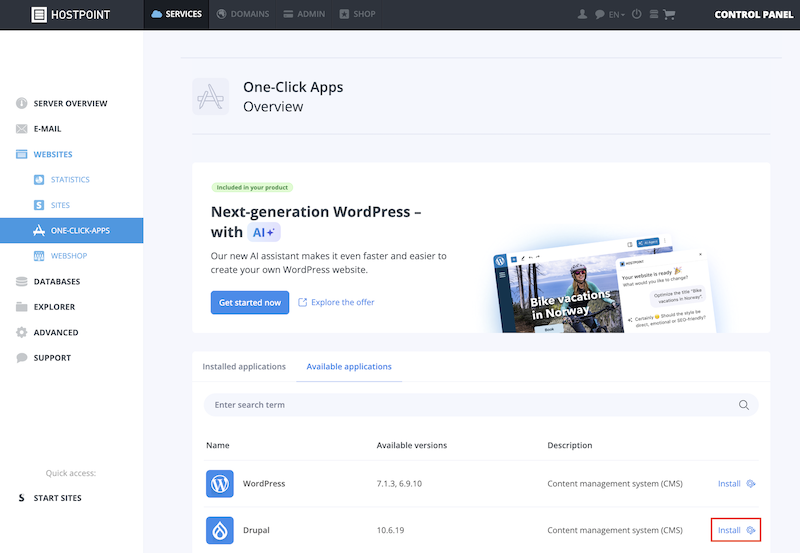
- Select the domain under which the website should be accessible.
Tip: you can either select an existing domain or type in a new subdomain. - Check the advanced settings for the installation and adjust them if necessary.
- Login details: username and password for logging in to the selected app. You can choose to have your username and password generated automatically during installation or set them yourself.
- Installation directory: choose the directory where the files for the app and your website will be installed.
- Version: version of the app that will be installed.
- Language: language in which the app is to be installed.
- Accept the general terms of use and click “Start installation”.
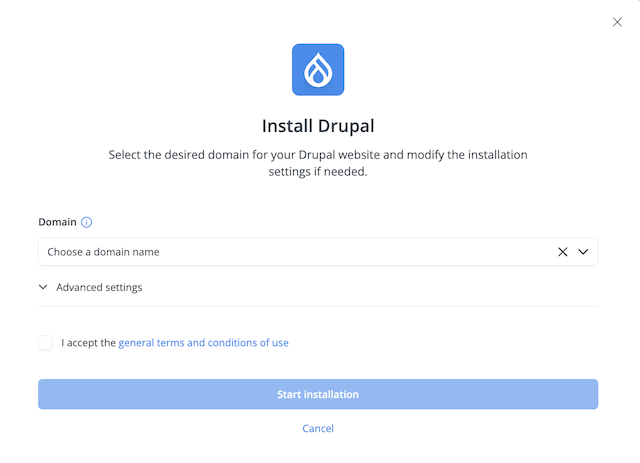
→ The one-click app will be installed on your hosting account. - If you chose to have the login details generated automatically, they will be displayed once after installation. Save your login details in a secure place.
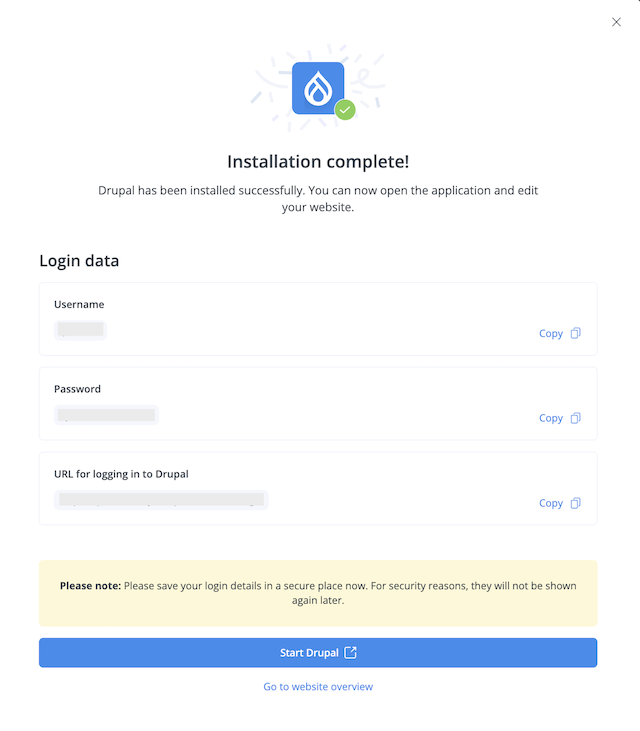
- You can now start editing your website. To do so, click “Start [app name]” and log in with your login details.
Info:Note: if an SSL certificate has not yet been set up for your website, it will be set up after installation. Once setup is complete, you can start the app and edit your website. A notification will let you know that the app is ready.

Please use this form only to provide feedback on the above guide.
For support requests please use this form instead.
For support requests please use this form instead.

